Credit card spend analysis is powerful for personal finance. However, existing apps raise privacy concerns. While spreadsheets are an option, they are cumbersome. AI-driven analysis offers powerful insights, but privacy remains critical. I’ve been wanting to dig into locally hosted LLMs and this seem like a good candidate.
The AI Credit Card Spend Analyzer bridges this. It’s a local-first, AI-powered tool. It transforms PDF credit card statements into financial insights, keeping all data on your machine.
This tool provides spending understanding and control. Local AI categorizes transactions and generates summaries, enabling smarter financial decisions while ensuring data privacy.
Privacy: A Local-First Design
Financial data privacy is essential. The AI Credit Card Spend Analyzer employs a “local-first” philosophy:
- Your Data Stays Yours: All processing and analysis occur exclusively on your local computer. No cloud uploads, no third-party servers, no external data breaches.
- Absolute Control: You retain complete control over your financial data.
- Transparency: The open-source nature (available on GitHub) ensures transparent data handling.
This commitment to privacy distinguishes the AI Credit Card Spend Analyzer from traditional budgeting apps that often require surrendering personal information.
How It Works: A Hybrid Approach
The Analyzer uses a robust, two-step process to transform unstructured PDFs into structured data:
- Text Extraction: First, the application uses the PyMuPDF library to extract all raw text from the PDF document. This provides a reliable, though often messy, text foundation.
- AI-Powered Structuring: This raw text is then passed to a local LLM (like Gemma). The AI’s job is to act as an expert data extractor, reading the unstructured text and pulling out transaction details into a clean, structured JSON format.
- Smart Categorization & Learning: Once transactions are structured, the AI categorizes them. When a user manually corrects a category, that correction is saved. For future analysis, these corrections are provided as examples in the prompt, allowing the AI to learn from user preferences via few-shot prompting.
- Financial Dashboards: Visualize spending with consolidated charts and receive AI-generated natural language insights on trends.
Technical Highlights: Local AI for Your Desktop
This privacy-first approach relies on a robust, accessible technical stack:
- Python (Flask): Core application with Flask for a lightweight web UI.
- SQLite (SQLAlchemy): Zero-configuration, file-based database for local data.
- PDF Text Extraction: The
PyMuPDFlibrary. - AI-Powered Data Structuring: A local LLM (like Gemma), run via LM Studio or Ollama.
During development, I initially experimented with using multimodal vision models to “read” the PDFs directly, but this approach failed to reliably extract structured data. The hybrid approach—using a Python library for robust text extraction and an LLM for intelligent parsing of that text—proved to be far more effective.
I also tested several models for the data structuring task. While models like DeepSeek did not work as expected, Gemma provided the most consistent and accurate results for this specific use case.
This combination delivers advanced AI capabilities without compromising performance or ease of use.
What’s next
Future enhancements include advanced trend analysis, investment insights, and predictive financial modeling, all maintaining core local-first privacy.
Setup Guide: Run Your Own Private Financial Analyzer
This guide details setting up the AI Credit Card Spend Analyzer on your local machine.
Prerequisites
- Python 3.10+
- LM Studio or Ollama (for running local LLMs)
- Your credit card statement PDFs
Step 1: Set Up Your Local LLM Server
To power transaction analysis, set up a local AI model. LM Studio and Ollama are recommended for their user-friendliness.
Option A: Using LM Studio
- Download LM Studio for your OS.
- Install and launch LM Studio.
- In “Discover” tab, search for and download a recent, efficient multimodal model. Good options for late 2025 include models from the Gemma 3 or Llama 4 series (e.g., a 4B or 9B parameter model is a good starting point).
- Go to “Local Server” tab. Click “Start Server.” Note server address (usually
http://localhost:1234).
Option B: Using Ollama
# Install Ollama from https://ollama.ai/
# Then pull a model:
ollama pull llama4:4b
ollama serve
For more advanced users, other runtimes like vLLM or TensorRT can offer higher performance.
Step 2: Clone and Install the Project
git clone https://github.com/surendranb/ai-credit-card-analyser.git
cd ai-credit-card-analyser

python3 -m venv .venv
source .venv/bin/activate

pip install -r requirements.txt
Step 3: Configure the LLM Endpoint
Open app/config.py. Verify LLM endpoint matches setup. Update URL if using Ollama or different port.
LM_STUDIO_API_BASE = "http://localhost:1234/v1/chat/completions"Step 4: Add Your Credit Card Statements
Place PDFs in the statements/ directory. The app supports most standard formats. Add multiple statements from different months or cards.
Step 5: Launch the Application
python3 run.pyThe app starts on http://127.0.0.1:5002.
Step 6: Process Your Statements
- Open browser to
http://127.0.0.1:5002. - Click “Process New Statements”.
- The AI will:
- Extract transactions from PDFs.
- Categorize each transaction.
- Generate spending insights.
- Store everything in local SQLite database.
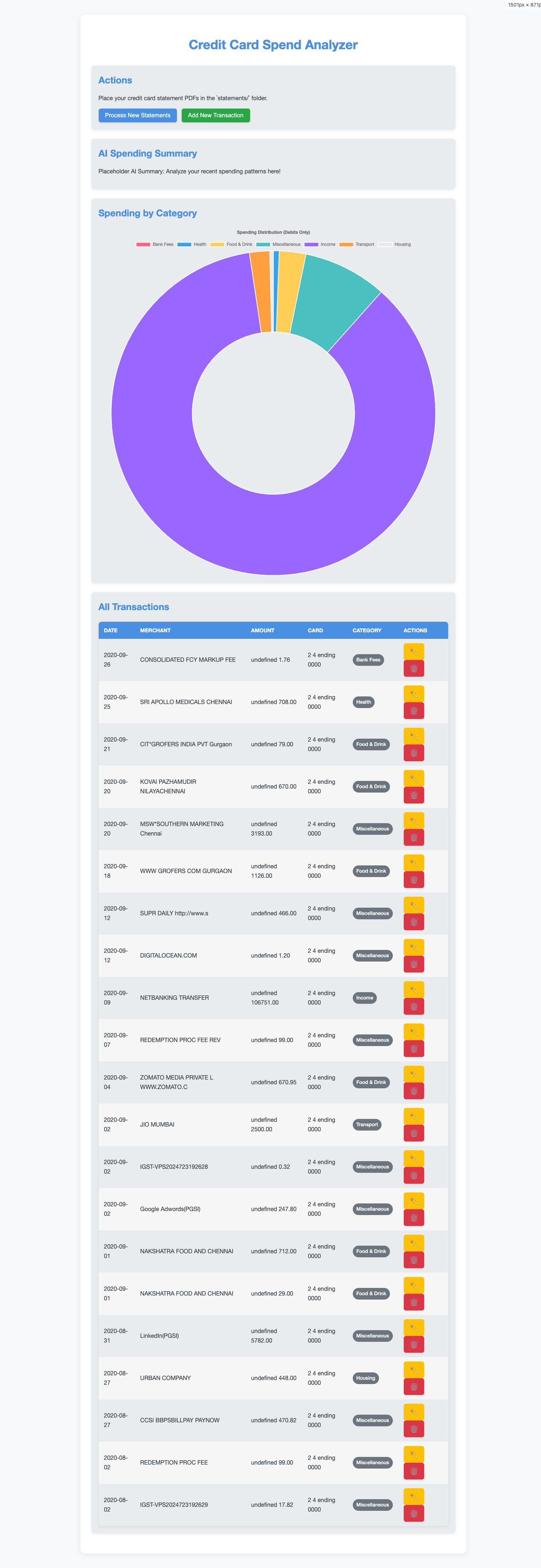
- View dashboard with:
- Transaction table (sortable and editable).
- Spending by category chart.
- AI-generated spending summary.
Step 7: Refine and Learn
- Click ✏️ icon to edit any transaction.
- Correct miscategorized items - the AI learns from your corrections.
- Add manual transactions using the “Add New Transaction” button.
- Delete unwanted entries with the 🗑️ icon.
Troubleshooting
- LLM connection errors? Ensure LM Studio or Ollama is running. Check
app/config.pyserver address. Try smaller model if memory issues occur. - PDF extraction issues? Ensure PDFs are text-based. Try different statement format. Check
app.logfor errors. - Database issues? Delete
spend_analyzer.dbto start fresh. Restart application.
Privacy Note
All your data stays on your machine. The database file (spend_analyzer.db) contains your financial information. Keep it secure and back it up regularly.
View Repository: AI Credit Card Spend Analyzer on GitHub