We often need to convert data from one format to another—massaging a complex JSON into a CSV for a report, turning Markdown into HTML, or cleaning up an XML file.
Every time we’d consider using a random website for the job, we’d pause. Uploading potentially sensitive information to an unknown third-party service feels like a security risk. The alternative, writing a dedicated script for each conversion, is time-consuming and isn’t always practical.
What DataFormatX is
To solve this, we built DataFormatX, an AI-powered file converter that runs entirely in your browser. It’s designed with a “local-first” philosophy, which means your data stays on your machine, where it belongs.
It uses large language models (LLMs) to handle complex conversions intelligently, gives you a web-based tool without the privacy trade-offs.
How it works
DataFormatX gives you two ways to handle conversions, so you can pick the one that best fits your needs.
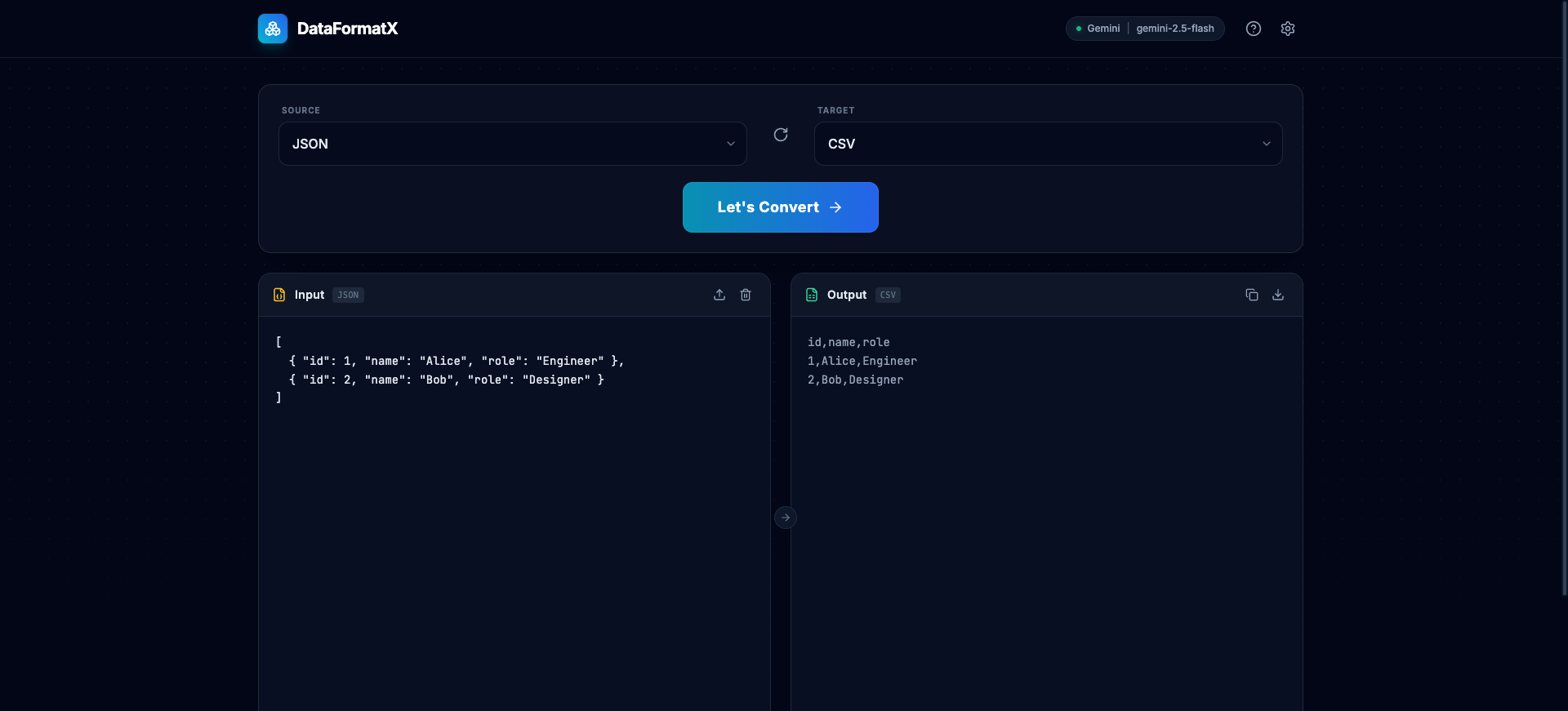
1. Using Local LLMs for Maximum Privacy If you have a local LLM server running (like Ollama or LM Studio), you can point DataFormatX to it. In this mode, your data is processed by a model running on your own computer. Nothing ever leaves your local network, giving you complete privacy.
2. Using Cloud LLMs for Power and Convenience You can also connect to powerful cloud-based models like Google Gemini or OpenAI. DataFormatX is built to send your data directly from your browser to the provider’s API. There is no middleman server, and I do not log, store, or cache your data. The tool uses a “Bring Your Own Key” (BYOK) model, so you are in full control of your API usage.
How to set it up
Getting started is simple.
1. Instant Access The easiest way to run the app is to open your terminal and use the following command:
npx dataformatxThis command downloads the latest version and opens the application directly in your web browser. No installation is required.
2. Configuration To perform a conversion, you need to tell DataFormatX which AI model to use.
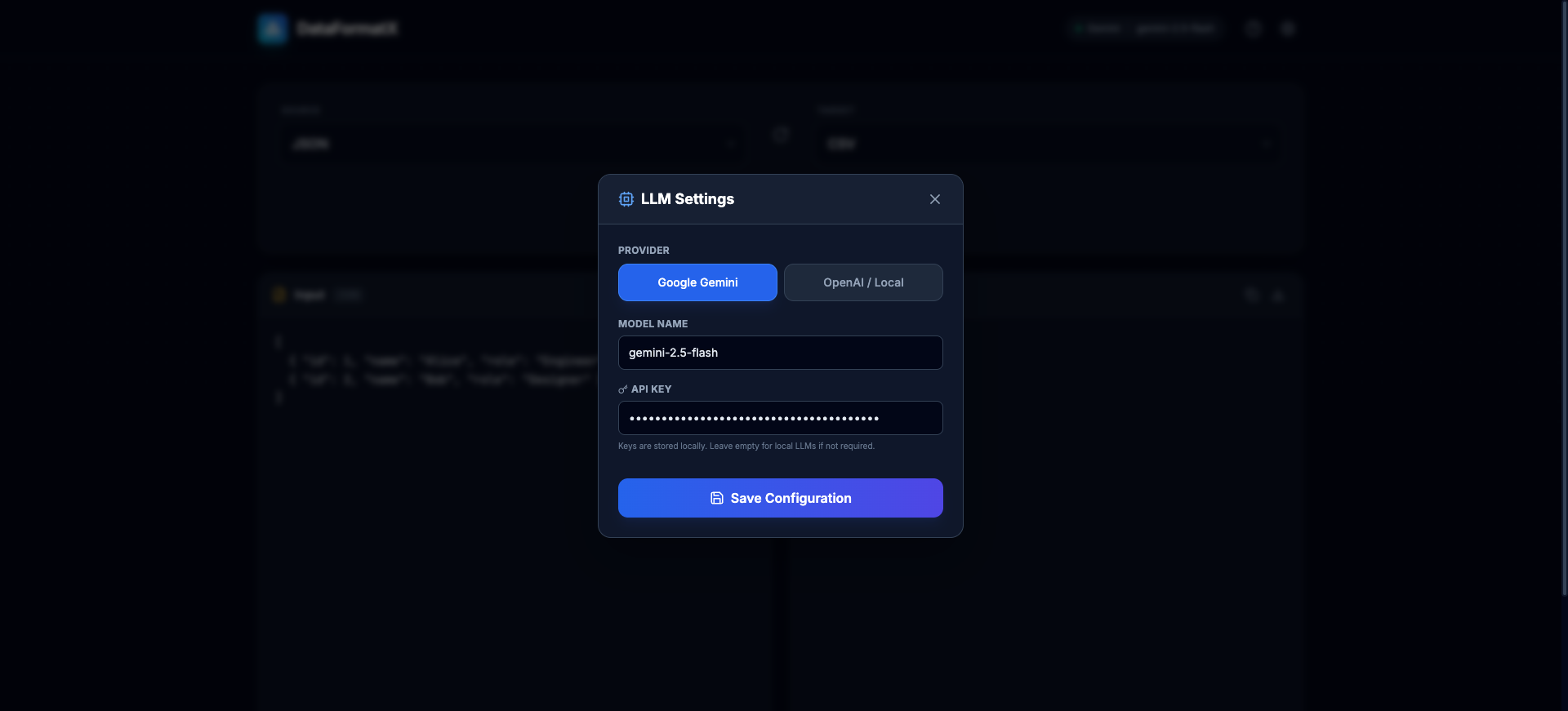
Click the “Settings” icon and enter either your API key for a cloud provider like Gemini or the endpoint for your local LLM. The configuration is saved in your browser’s localStorage and is never sent anywhere else.
See it in action
Here’s how simple it is to convert data with DataFormatX:
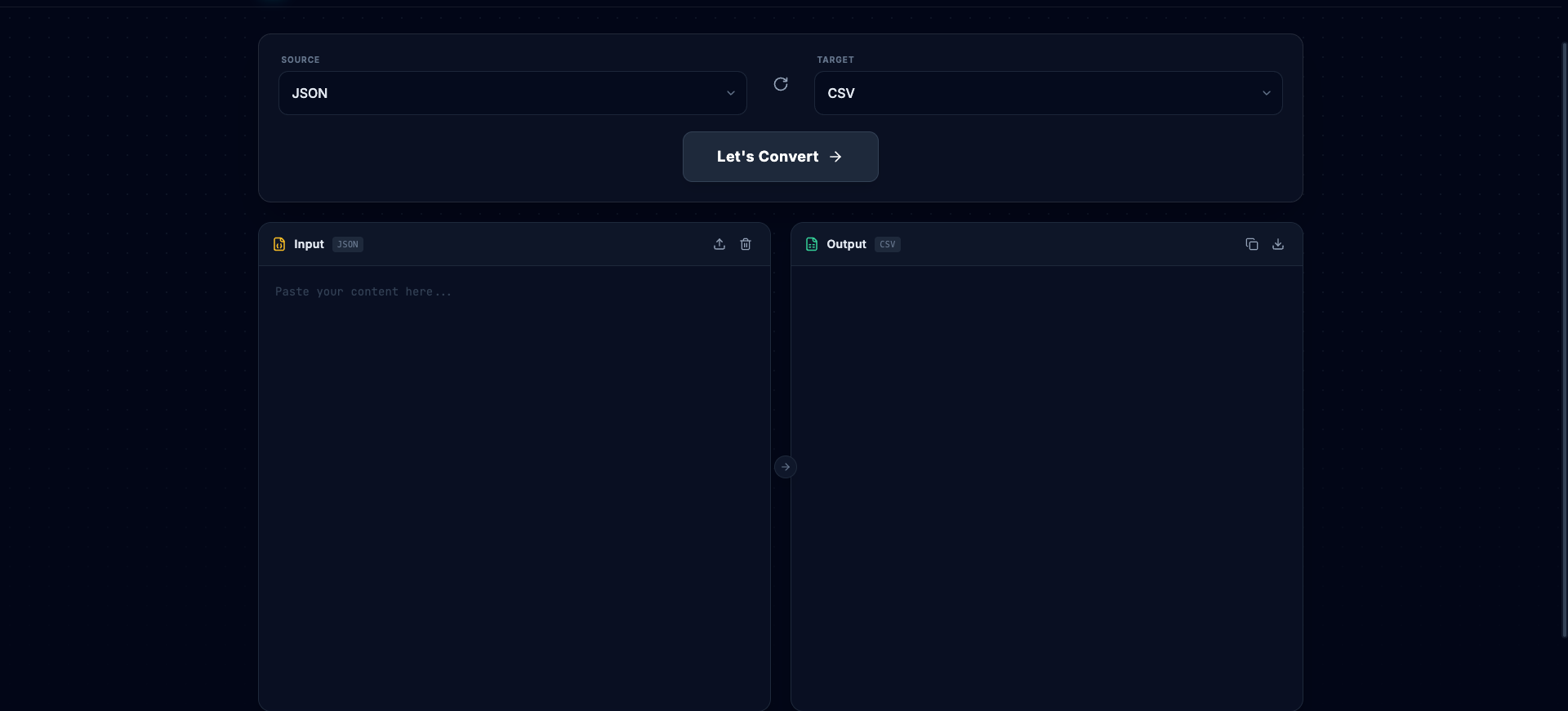
Step 1: Start with an empty canvas
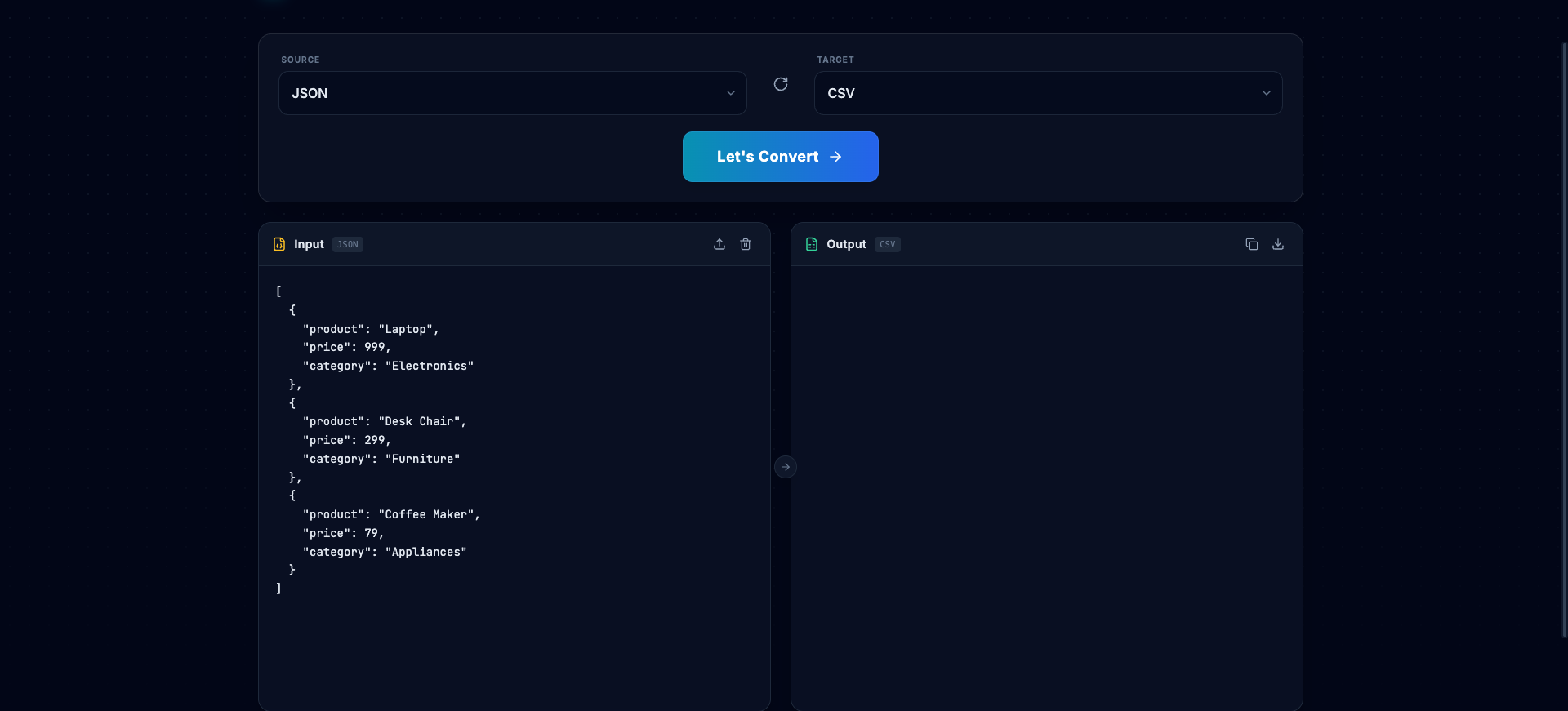
Step 2: Paste your JSON data
Step 3: Click “Let’s Convert” and get your CSV
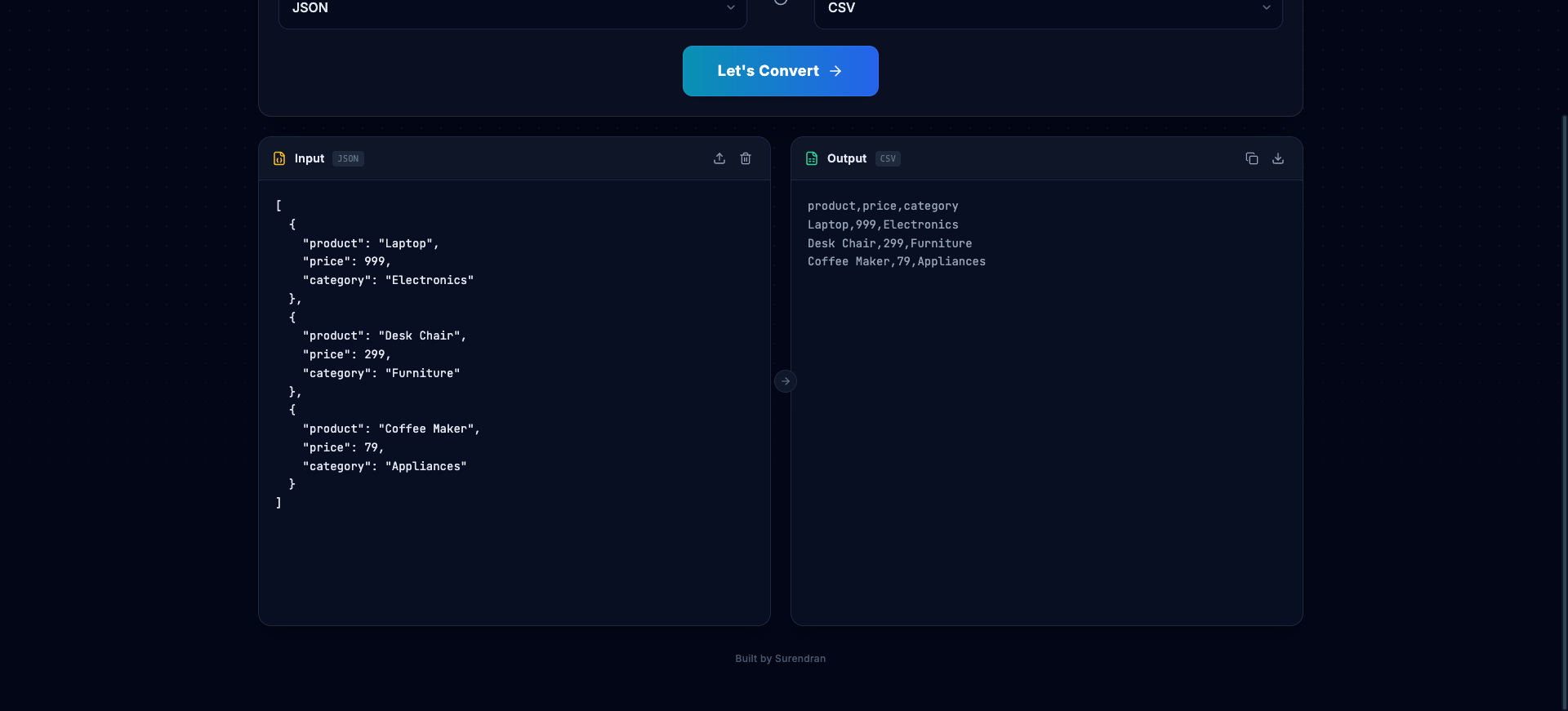
The AI intelligently understands your data structure and converts it to the target format. You can convert between JSON, CSV, XML, YAML, Markdown, HTML, Plain Text, and LaTeX.
Conclusion
DataFormatX offers a straightforward solution to a common problem. It’s a simple, secure, and effective tool that gives you the convenience of AI-powered file conversion without compromising privacy.
Try it out: npx dataformatx