Extending Claude’s Capabilities Through Skills
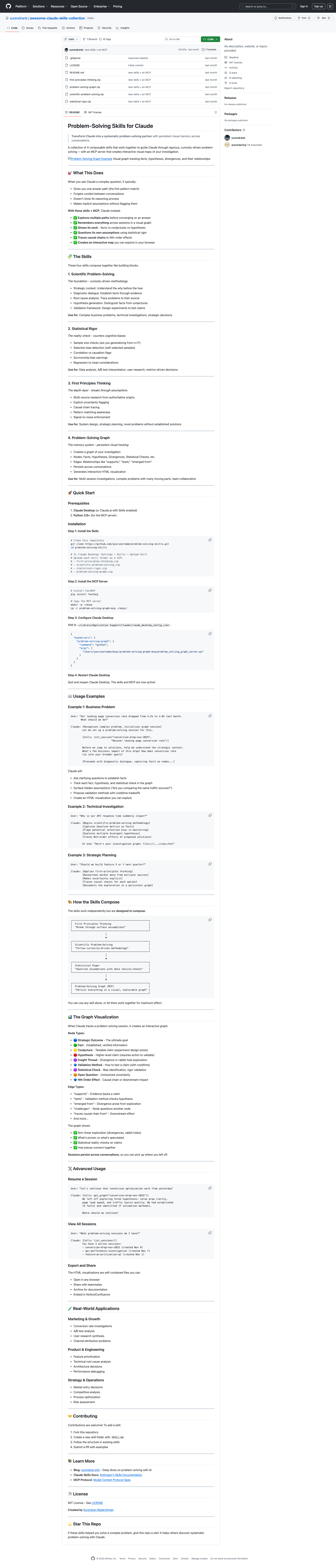
Claude is powerful, but specialized “skills”—structured prompts and frameworks—guide it to perform specific tasks with precision and consistency. Awesome Claude Skills is an open-source repository offering a curated collection of reusable skills to enhance Claude’s capabilities.
Skills function as mental models or frameworks, helping Claude approach diverse problems. They provide proven patterns for analysis, reasoning, and execution, eliminating the need to start from scratch.
Why Claude Needs Skills
Claude benefits from well-structured prompts that guide its reasoning, much like a human expert relies on diverse skills and mental frameworks. Claude skills offer several advantages:
- Consistency: Skills provide repeatable patterns for Claude to approach similar problems, reducing output variability.
- Specialization: Each skill focuses Claude on specific methodologies, such as TRIZ problem-solving, data analysis, or creative brainstorming.
- Composability: Skills can be combined to tackle complex multi-step challenges by applying the right framework at each stage.
- Knowledge Transfer: Skills encode best practices and methodologies, making expert-level approaches accessible via simple prompts.
Key Skills in the Collection
The collection includes a growing array of specialized skills to enhance Claude’s capabilities:
- Problem-Solving Frameworks: Structured implementations of methodologies like TRIZ, SCAMPER, and First Principles thinking for systematic problem decomposition and creative solutions.
- Analysis & Research: Skills for thorough research, source evaluation, information synthesis, and insight generation from complex data.
- Writing & Communication: Frameworks for different writing styles, audience adaptation, technical documentation, and persuasive communication.
- Strategic Thinking: Skills for scenario planning, decision analysis, risk assessment, and strategic evaluation.
- Code & Technical Skills: Specialized prompts for code review, debugging strategies, architecture design, and technical documentation.
Each skill is a reusable prompt template that you can invoke when you need Claude to apply that specific methodology or approach.
How to Use Claude Skills
Using skills from the collection is straightforward:
- Browse the Collection: Explore the repository to find skills matching your current challenge.
- Copy the Skill Prompt: Each skill includes a structured prompt template.
- Invoke in Claude: Paste the skill prompt into your conversation with Claude, along with your specific problem or context.
- Combine Skills: For complex tasks, chain multiple skills—use one to analyze, another to generate solutions, and a third to evaluate options.
Behind the Philosophy: Building and Learning
My motivation for creating this skills collection: a belief that “building is the best way to learn.” Working with Claude, I discovered patterns that produce consistent results. This collection codifies those learnings into reusable components.
Each skill distills best practices, proven methodologies, and effective prompt patterns. You can leverage these structured approaches to get better results from Claude, faster.
Fostering a collaborative ecosystem is also key. As more people use Claude for sophisticated work, sharing effective prompt patterns benefits everyone.
Setup Guide: Install and Use Claude Skills
Claude Skills work with both Claude Desktop and Claude.ai. Here’s how to get started with the complete collection, including the Problem-Solving Graph MCP server.
Prerequisites
- Claude Desktop (recommended) or access to Claude.ai
- Python 3.8+ (for the MCP server)
- Git (for cloning the repository)
Step 1: Clone the Repository
git clone https://github.com/surendranb/awesome-claude-skills-collection.git
cd awesome-claude-skills-collection
Step 2: Install Skills in Claude Desktop
For Claude Desktop Users:
- Open Claude Desktop.
- Go to Settings → Skills.
- Click “Upload Skill.”
- Navigate to the cloned repository.
- Upload each skill folder as a ZIP file:
first-principles-thinking.zipscientific-problem-solving.zipstatistical-rigor.zipproblem-solving-graph.zip
For Claude.ai Users:
Skills can be invoked by copying the skill prompts directly into your conversation. Each skill folder contains a SKILL.md file with the complete prompt template.
Step 3: Install the Problem-Solving Graph MCP Server (Optional but Recommended)
The MCP server enables persistent visual tracking of problem-solving sessions across conversations.
Install FastMCP:
pip install fastmcpCopy the MCP Server:
mkdir -p ~/mcps
cp -r problem-solving-graph-mcp ~/mcps/
Configure Claude Desktop:
-
Open or create the Claude Desktop config file:
- macOS:
~/Library/Application Support/Claude/claude_desktop_config.json - Windows:
%APPDATA%\Claude\claude_desktop_config.json
- macOS:
-
Add the MCP server configuration:
{
  "mcpServers": {
    "problem-solving-graph": {
      "command": "python",
      "args": [
        "/Users/yourusername/mcps/problem-solving-graph-mcp/problem_solving_graph_server.py"
      ]
    }
  }
}
Important: Replace /Users/yourusername/ with your actual home directory path.
- Restart Claude Desktop.
Step 4: Verify Installation
Test a Simple Skill:
Open Claude and try this prompt:
Use the First Principles Thinking skill to analyze:
Why do electric cars have limited range compared to gas cars?
Claude should recognize the skill and apply the structured framework.
Test the MCP Server:
Initialize a problem-solving session for:
"Improving our website conversion rate"
If the MCP server is working, Claude will create a session and start tracking nodes in a graph.
Step 5: Using Skills Effectively
Single Skill Usage:
Apply the Statistical Rigor skill to evaluate this claim:
"Our new feature increased user engagement by 50%"
Combining Skills:
Let's solve this problem systematically:
1. Use First Principles to understand the core issue
2. Apply Scientific Problem-Solving methodology
3. Check our reasoning with Statistical Rigor
4. Track everything in a problem-solving graph

Problem: How can we reduce customer churn?
Viewing Your Problem-Solving Graphs:
When using the MCP server, Claude will generate interactive HTML visualizations. Ask Claude:
Show me the visualization for this sessionClaude will provide a file path to an HTML file you can open in any browser.
Troubleshooting
- Skills not recognized? Ensure you’ve uploaded the ZIP files correctly in Claude Desktop. For Claude.ai, copy the full skill prompt from the
SKILL.mdfile. - MCP server not connecting? Check that Python is in your PATH. Verify the file path in
claude_desktop_config.jsonis correct. Look for error messages in Claude Desktop’s developer console. - Graph visualizations not generating? Ensure FastMCP is installed:
pip show fastmcp. Check that the MCP server has write permissions in its directory.
Advanced Usage
Create Your Own Skills:
- Study the structure of existing skills in the repository.
- Create a new folder with your skill name.
- Add a
SKILL.mdfile with your prompt template. - Include examples and usage guidelines.
- Submit a pull request to share with the community!
Customize Existing Skills:
Feel free to modify the skill prompts to match your specific needs. The skills are templates designed to be adapted.